

A complete guide to using PROPEN — the AI-powered script generator for journalism. Learn how to generate scripts, analyze your writing DNA, and manage news sources.
Generate AI-powered scripts that match your unique writing voice and preferred sources.
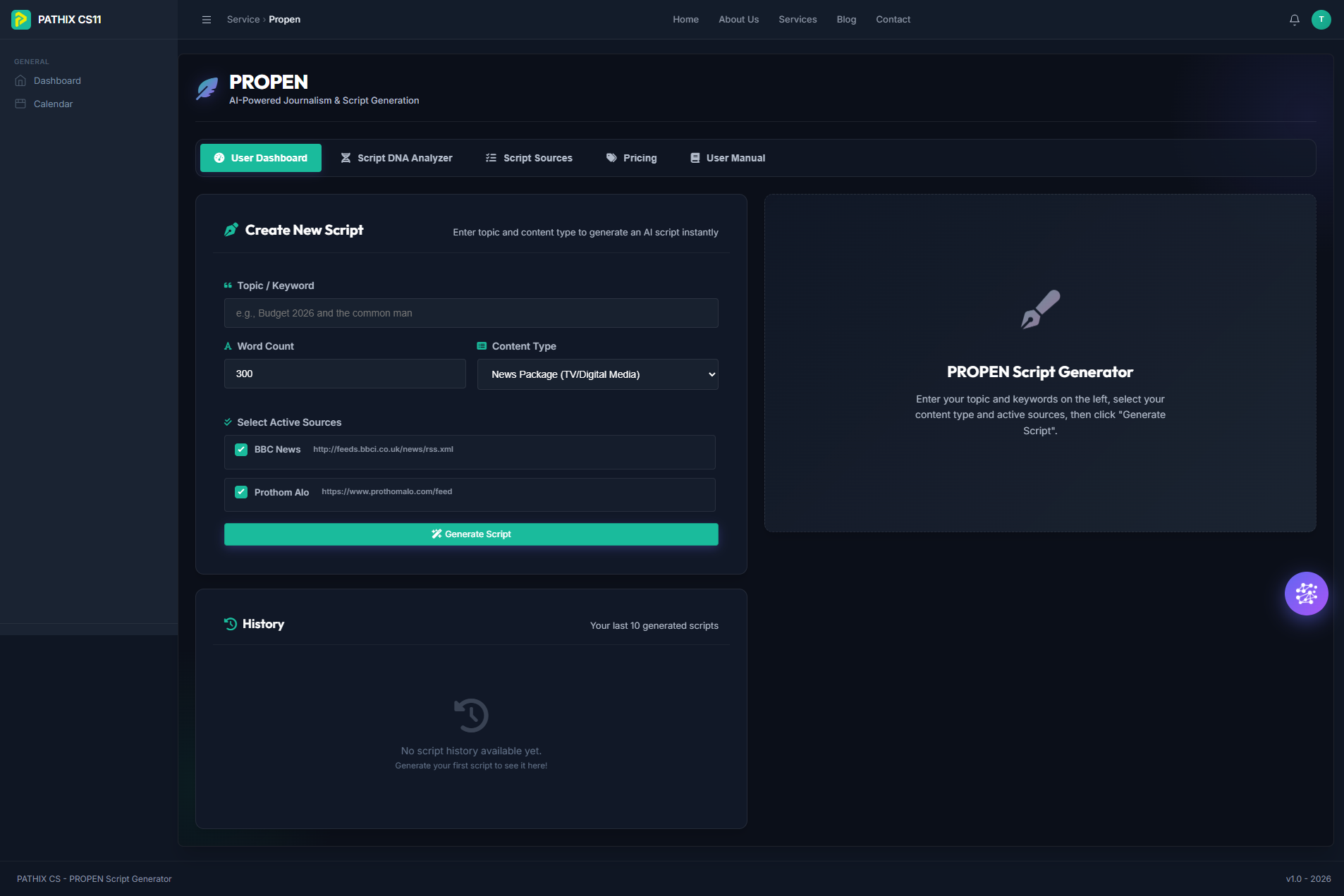
Type the subject you want to cover. Be specific for better results — e.g. “Budget 2026 and the common man”, “Iran-USA peace deal”.
Choose script length (50–2000 words) and format:
Check which RSS feeds the AI should reference. Manage sources in the Script Sources section.
Click Generate Script. The AI fetches news, applies your DNA profile, and outputs a complete script with cited source links. Use Copy Script to copy it.
Tip: Set up your Writing DNA Profile first (see below). The AI will then match your unique style and vocabulary in every script.
Important: PROPEN is AI-assisted and can make mistakes. Always verify facts, quotes, and references before publishing.
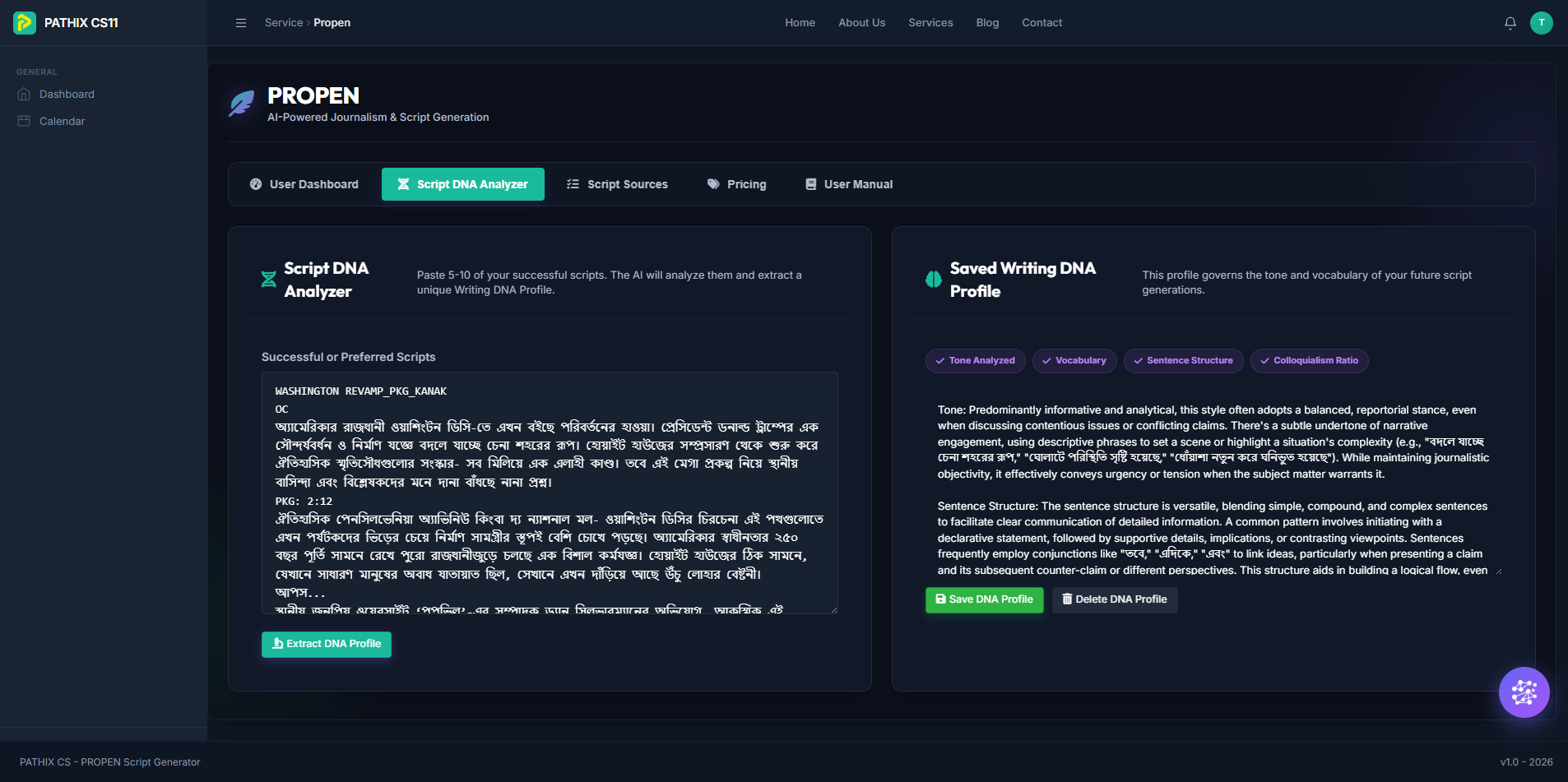
Extract a unique Writing DNA Profile from your existing scripts. The AI learns your tone, vocabulary, and structure.
Copy 5–10 of your best scripts into the text area. Diverse topics and formats produce a richer DNA profile.
Click Extract DNA Profile. The AI analyzes and generates a profile covering:
Review and edit the profile, then click Save DNA Profile. All future generations will use this profile. Click Delete to reset.
Tip: Include scripts of different lengths and topics for the most comprehensive DNA profile.
Manage news feeds that the AI uses as reference material when generating scripts.
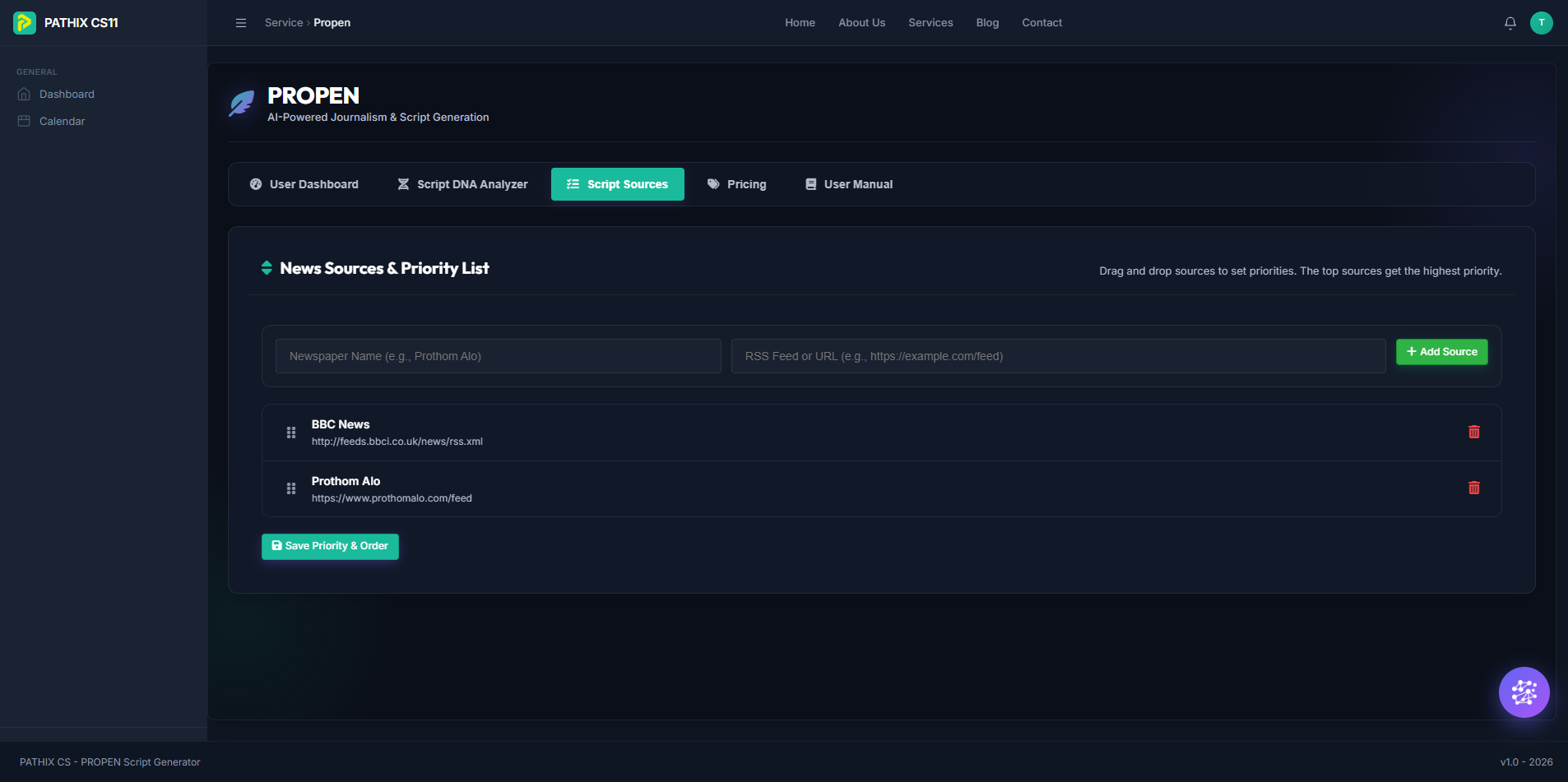
Enter the newspaper name and RSS feed URL, then click Add Source.
Drag sources using the handle. Higher priority sources are consulted first.
Click Save Priority & Order to persist changes. Use the button to delete a source.
Everything you need to get started with PROPEN — from account setup to advanced features.
Navigate to the Propen link in the sidebar or visit /propen/ directly. If you have an active subscription, you will see the full dashboard with all feature tabs.
The dashboard is organized into several tabs:
Choose a plan from the Pricing tab. Free plans activate immediately; paid plans go through a checkout process. Once activated, all core features unlock automatically.
For additional assistance, contact the support team or refer to the in-app User Manual tab. Admin users can customize the User Manual text and add a YouTube tutorial link from the dashboard settings.
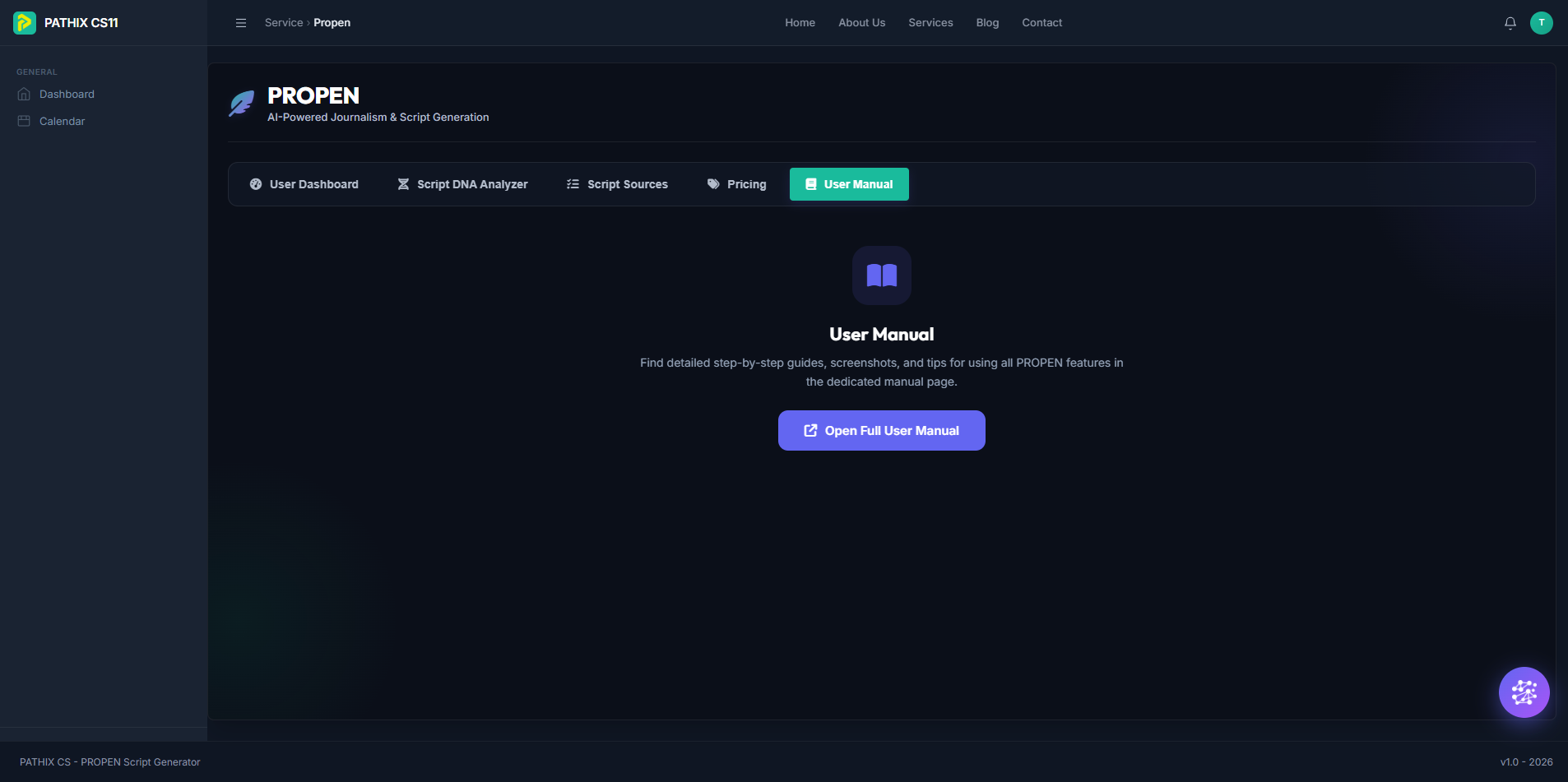
Tip: Bookmark the User Manual page (/propen/faq/) for quick access whenever you need it.